b+s Connects for Salesforce setup flow
You’ve successfully downloaded b+s Connects for Salesforce.
We’re so pleased you’re interested in taking this product for a test-drive and hope you’ll join the group of highly satisfied customers utilizing this product to drive their businesses forward.
If you have any questions about purchase options, please don’t hesitate to call: 1-800-917-9060 or email: info@bucher-suter.com
Contact us →Installation Tutorial
Assign License
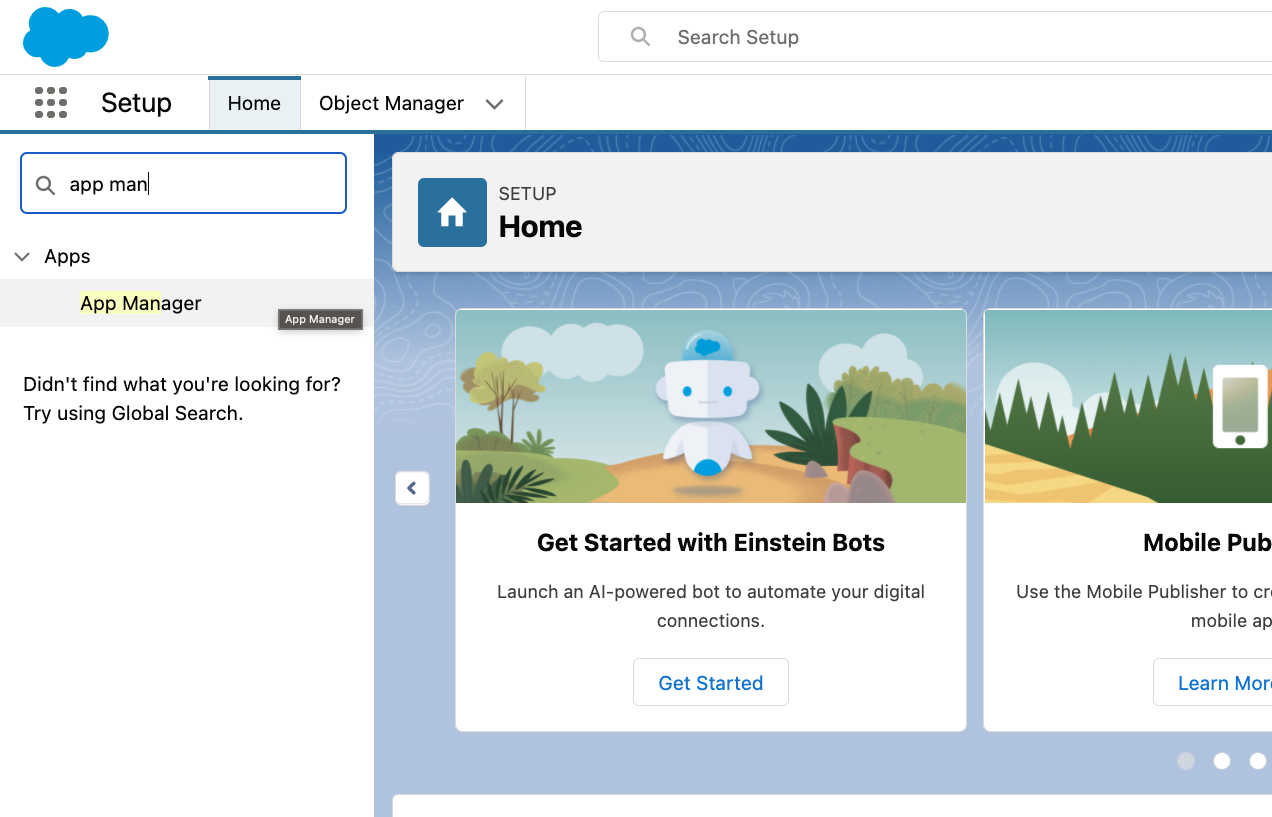
- From Setup, enter installed packages in the quick find box and select installed packages
- Select managing licenses
- Select “add users”, find and select desired users
- Select “Add” to save
Defining Lightning Agent Desktop
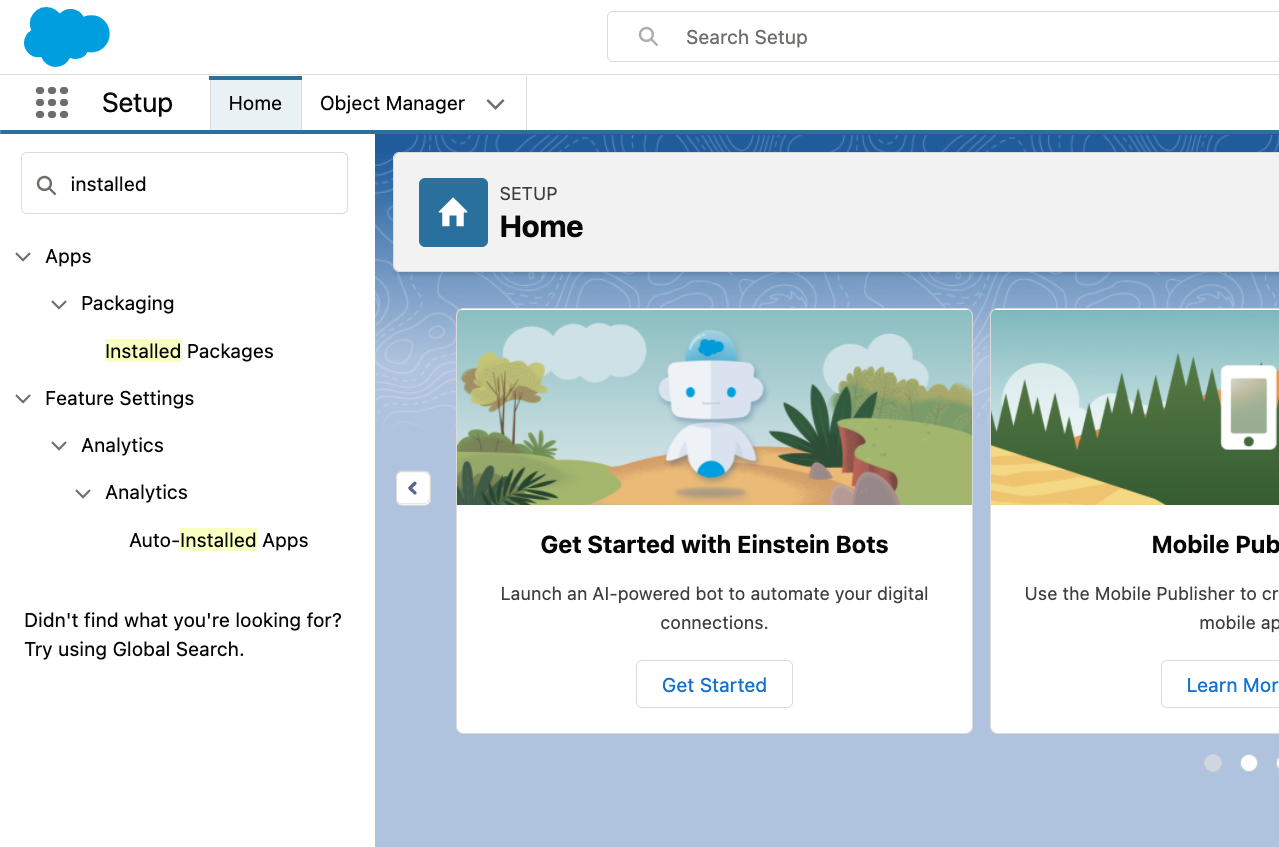
- From Setup, enter App Manager in the Quick Find box and select App Manager
- Find the desired Salesforce Lighting App
- Select Edit
- In the Lightning App Builder, select Utility Bar
- Select Add
- Search for CTI
- Click Open CTI Softphone to add the utility to the Lightning app
- Update the label to b+s Connects
- From the App Launcher, select the previously assigned app
- Verify that the Connects for Salesforce gadget loads